
The Management page is where users with Manager permissions can update the Followers of Agreements. In this article, we'll show you how to make these changes.
Video Tutorial: How to use the Management Page
Check out this video guide on how to use the Management Page and edit the Followers on your Agreement below:
Management Tab
On the Management Tab, the Management Overview Report shows you a list of all the Agreements in your Organisation, and the followers of each of those Agreements. The followers might be:
- Specific Users.
- All Users. This is the default setting when you create a new Agreement.
If a User is a follower of an Agreement, they will receive email notifications about upcoming events for that Agreement. Users not set as followers will not receive email notifications for that Agreement. Followers are displayed on the Agreement Overview page, in the header section.
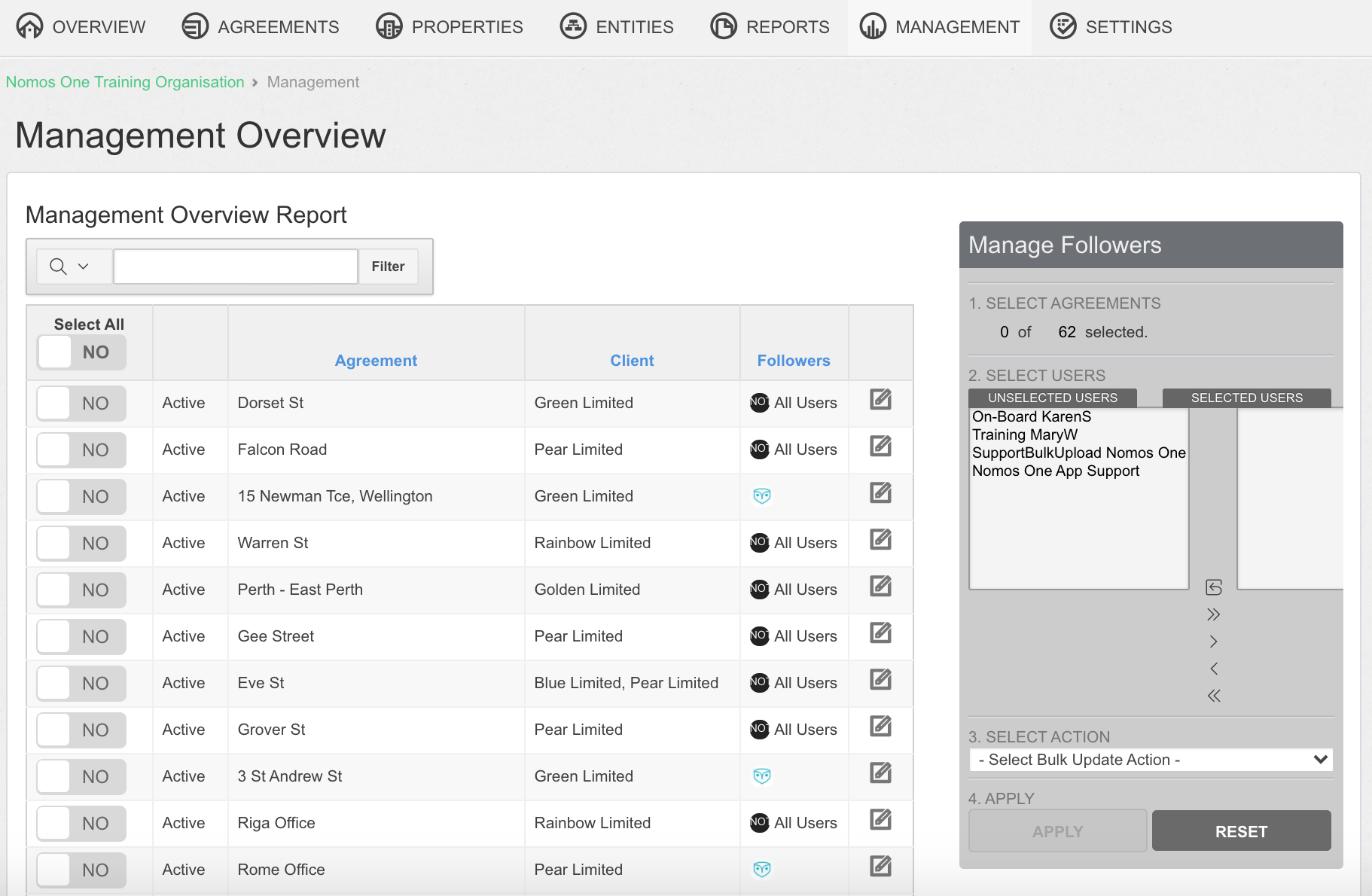
Update Agreement Followers
To update the followers on an Agreement:
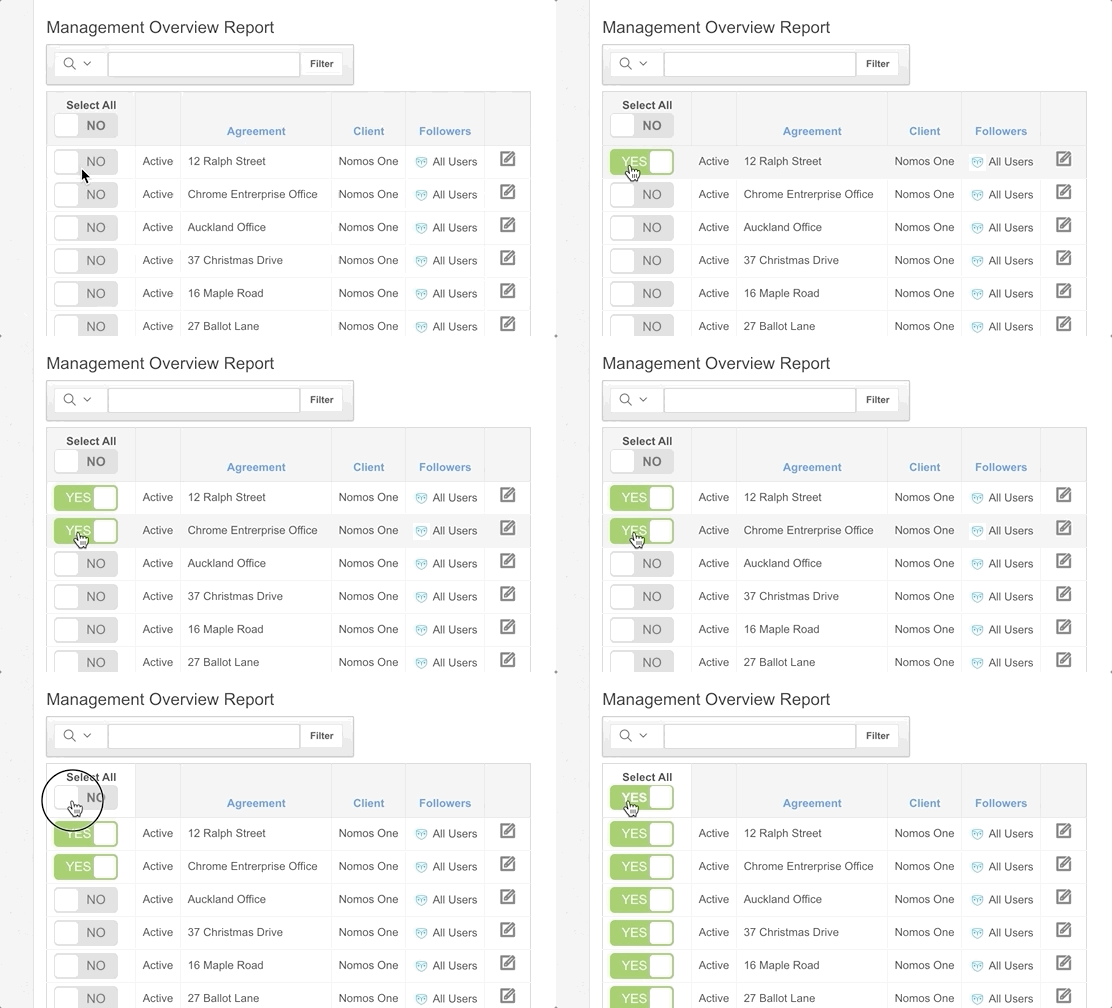
- Select the Agreement/s where you want to change the Followers. You can either:
- Update all Agreements by toggling Select All to “Yes”.
- Select “Yes” on individual Agreements.
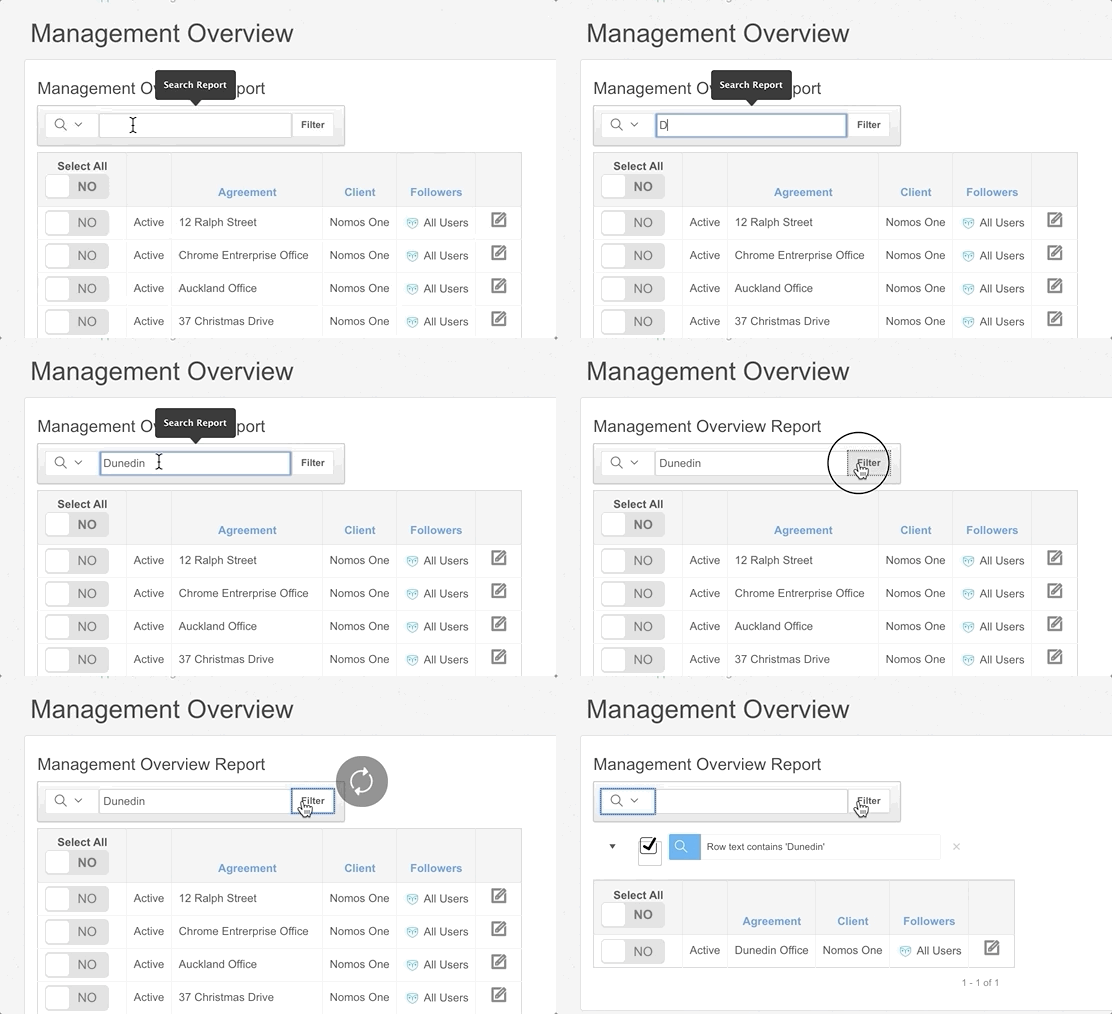
If you're looking for a specific Agreement, use the search bar to find it:
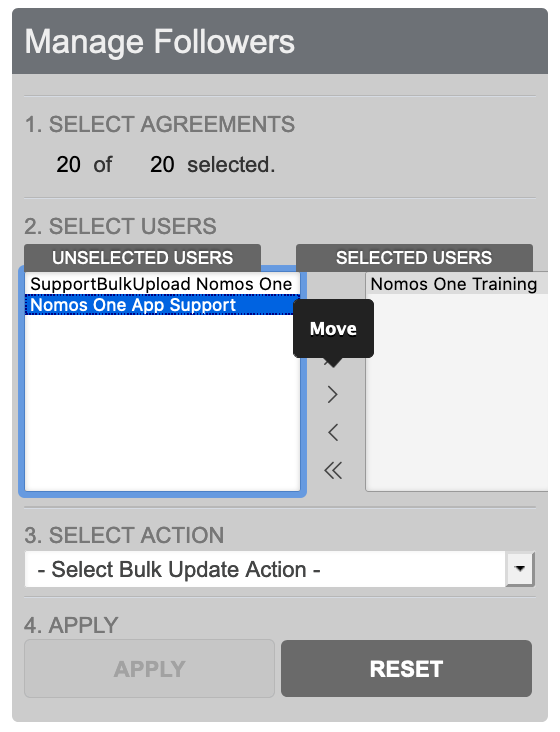
- After you've selected the Agreement/s you want to change, use the Manage Followers box on the right side of the page to select which Users you want to add or remove as Followers. Click on a User's name in the left panel and use the arrows to move them to the Selected Users panel on the right. You can either:
- Move selected Users using the > or < arrows.
- Move All Users using the >> or << arrows.
- After you've selected Users, select an Action from the drop down bar to apply to the selected Agreements. You can either:
- Add selected Users to Followers
- Remove selected Users from Followers
- Add all Users except selected Users to Followers
- Remove all Users except the selected Users from Followers
- Set All Users as Followers
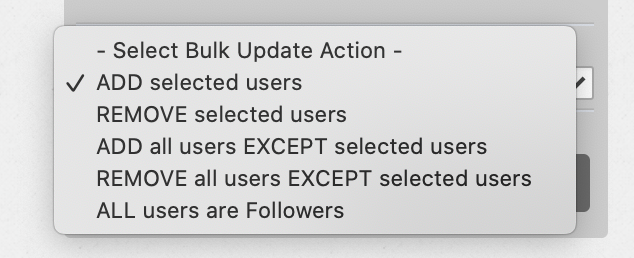
Please Note: If an Agreement currently has All Users as followers, you won't be able to use the “Remove Selected Users” option. Instead, use the option to “Add All Users Except Selected Users” to achieve the same result.
- Click “Apply” to implement the changes.
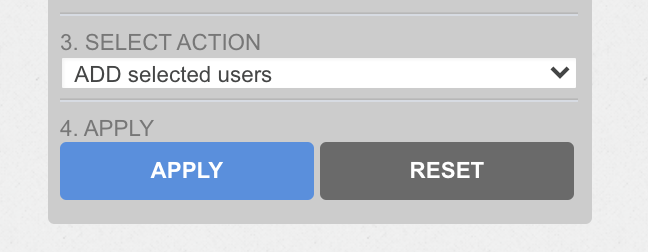
You'll be able to see the changes you've made on the Management Overview Report.
Nomos One does not provide or purport to provide any accounting, financial, tax, legal or any professional advice, nor does Nomos One purport to offer a financial product or service. Nomos One is not responsible or liable for any claim, loss, damage, costs or expenses resulting from your use of or reliance on these resource materials. It is your responsibility to obtain accounting, financial, legal and taxation advice to ensure your use of the Nomos One system meets your individual requirements.